
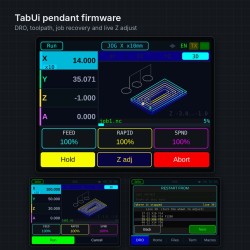
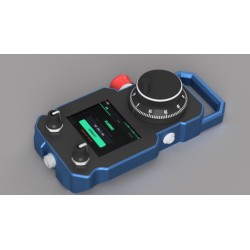
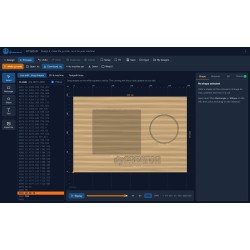
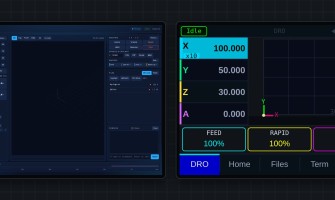
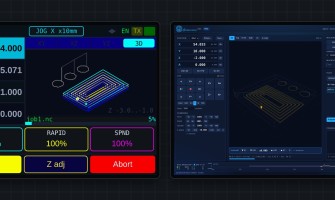
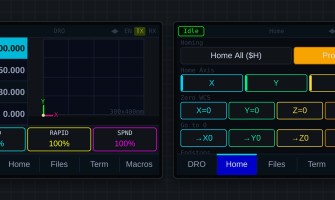
Prefer to watch? See the pendant video tutorials: 10 short videos from installing the pendant to recovering a job.
SmartTabUI is installed and updated only from the Flash Firmware page, straight from the browser. There is no file to download. This page explains installing, updates, registration and support.
What you need
- Chrome or Edge on a computer (Windows, macOS, Linux). Firefox and phones cannot talk to USB devices.
- A USB data cable (some cables only charge).
- A dpcreator.eu account. To register a new pendant, the account needs a SmartTabUI licence (bought on its own or with an assembled pendant; it includes the dpCREATOR WebUI).
Install or update
- Log in to your dpcreator.eu account and open Flash Firmware → Pendant firmware.
- Unplug the controller cable from the pendant and connect the pendant to the computer by USB.
- Click Connect and install and choose the pendant's serial port.
- The page reads the pendant's chip ID, checks its registration and installs the latest build. Do not unplug it while the bar runs.
- When it says Done, the pendant restarts by itself. Plug the controller cable back in.
Your pendant settings (theme, ENABLE mode, probe settings…) are kept. After updating the pendant, update the controller firmware as well – they are developed together.
Registration
- Each pendant is registered by its chip ID the first time it is installed with a licence. One licence registers one pendant.
- A registered pendant can be updated from any dpcreator.eu account, as often as you like – also after a full erase, or after it changed owner.
- Pendants sold assembled by dpCREATOR are registered before they ship.
- Settings → LICENCE on the pendant shows Registered and the chip ID.
Nothing is ever locked
A pendant without a licence works fully; it only says Not registered on the boot screen and in Settings. The licence is checked on the pendant itself, without the internet, and it does not expire. A licence pays for the development of SmartTabUI, the WebUI and the free dpCREATOR controller firmware, and brings updates and support.
Update notices
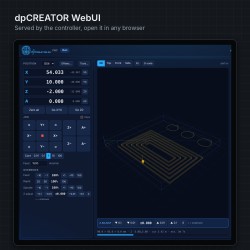
About once a day, the dpCREATOR WebUI asks dpcreator.eu whether newer builds exist and shows update available in its footer. It sends only the board ID, the pendant's chip ID and the build numbers. Turn it off with update check: on in the WebUI footer.
Support
Open a ticket on the Support page (log in to your account first). Give the pendant's chip ID (Settings → LICENCE) or the controller's board ID, and the build numbers (pendant boot screen, WebUI footer); you can attach a photo, your config.yaml or a log. We answer on the ticket page and by e-mail. Support covers dpCREATOR controllers running the dpCREATOR FluidNC firmware, with registered pendants and WebUIs.
If it does not work
| This browser cannot talk to USB devices | Use Chrome or Edge on a computer. |
| No port in the list, or it fails to connect | Try another cable (a data cable) and USB port; close any serial monitor or other page using the port; hold the BOOT button while clicking. |
| Not registered yet … licence | This pendant has no registration and your account has no free licence. Buy one, or if it came assembled or second-hand, contact us with its chip ID. |
| Firmware not available right now | Try again in a few minutes. |