
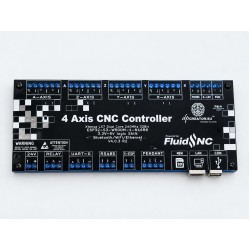
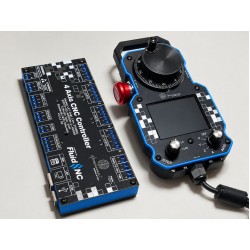
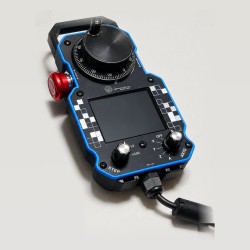
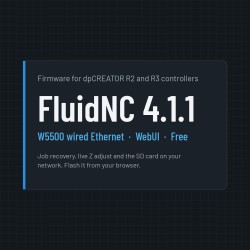
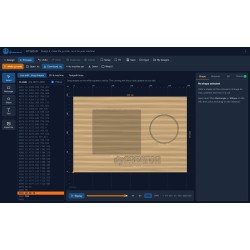
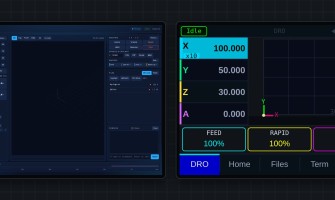
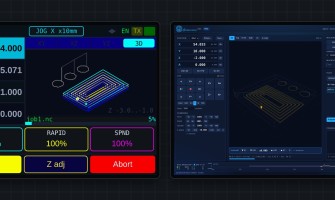
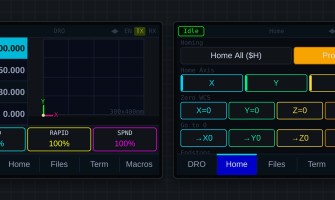
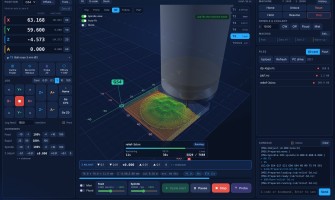
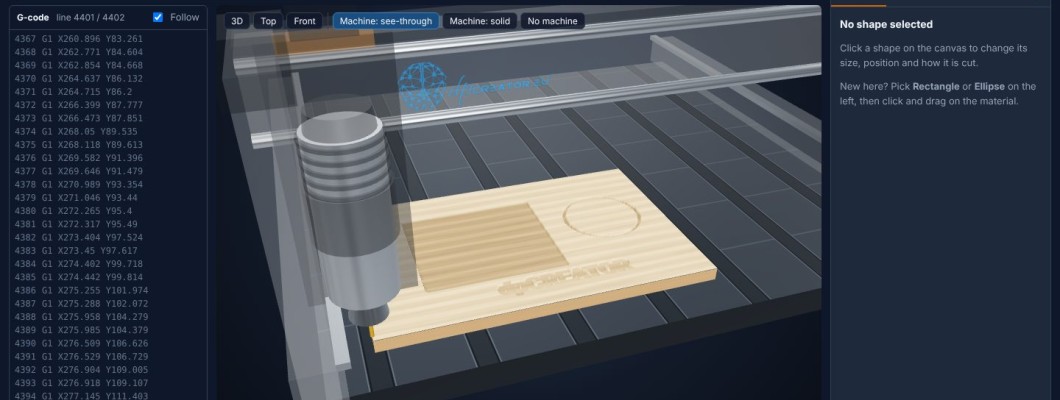
dpCREATOR Studio can also live on your controller, next to the WebUI. It then opens from the machine's own address, works without internet, and sends the g-code straight to the SD card. Installing is free with a dpcreator.eu account and takes about a minute over USB. It works on any FluidNC 4.x controller; with the dpCREATOR firmware you also get the Studio button in the WebUI and jobs that arrive prepared.
Install
- Log in to your dpcreator.eu account (free to create).
- Open Flash Firmware, tab Studio, card Install Studio on your controller.
- Connect the controller to the computer with a USB cable. The machine must be Idle (or in Alarm), not running a job. Close any other program that uses its serial port.
- Click Install Studio on my controller and choose the controller's port.
- Wait for Done. The controller does not restart, and your settings, the WebUI and the files on the SD card are not touched.
Open it
- dpCREATOR firmware:
http://<your board>/studio.html, for examplehttp://fluidnc.local/studio.html, or click Studio at the top right of the dpCREATOR WebUI. - Stock FluidNC 4.x:
http://<your board>/flash/studio.html, for examplehttp://192.168.1.50/flash/studio.html. Bookmark it.
Send a job to the machine
- Make your design and press Make g-code. When Studio is opened from the controller, it already knows the machine's address (on other copies, enter it in Setup).
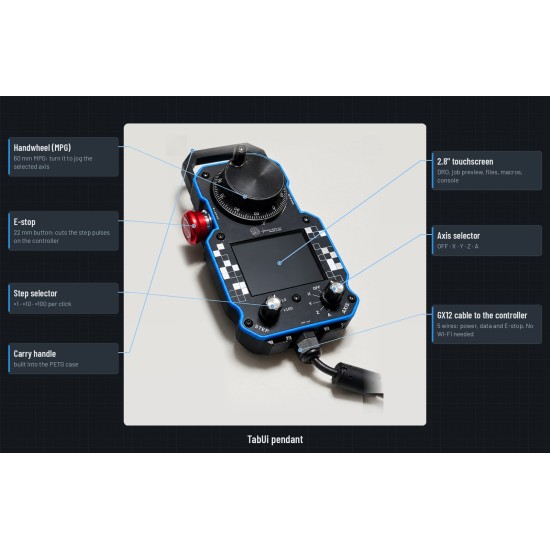
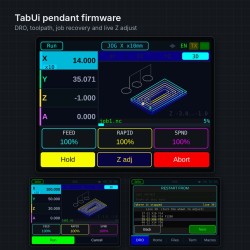
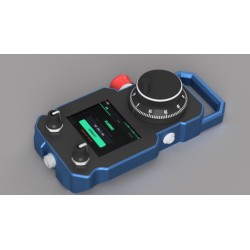
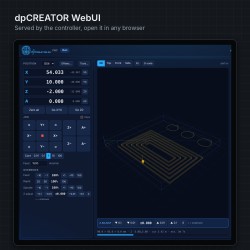
- Press Send. The file goes to the root of the SD card and is prepared straight away: any open dpCREATOR WebUI shows its preview with a Run / Cancel bar, and the SmartTabUI pendant shows it too. Nothing moves yet.
- Set the work zero, then press Run in the WebUI or on the pendant. No WebUI open? The blue WebUI button at the top right of Studio opens it, with the job ready. If the WebUI is already open in another tab, it switches to that tab instead of opening a new one; the WebUI's Studio button does the same the other way.
On a controller with stock FluidNC the file is sent to the SD card but not prepared (that needs the dpCREATOR firmware): start it from the WebUI's SD card list.

Updating and removing
- Update: install again from the Flash Firmware page. The new copy replaces the old one. Your designs are kept: they are stored in your browser, not on the controller.
- Remove: delete
studio.html.gzfrom the controller's flash files (Classic UI → flash files), or send$LocalFS/Delete=/localfs/studio.html.gzin the console. - Flashing the full controller firmware (merged image) clears the flash files: install Studio again afterwards, as you do with the WebUI.
Designs on the controller copy
Browsers keep data per address, so designs made in the controller copy are separate from those made on dpcreator.eu, and changing the board's address (for example from fluidnc.local to its IP) shows a different list. Use Save (project file) and Open to move a design.
If it does not work
| Needs Chrome or Edge on a computer | Web Serial is not available in this browser. Use Chrome or Edge on Windows, macOS or Linux. |
| The controller does not answer | Check the cable (a data cable) and the port. Close serial monitors, other WebUI tabs connected over USB, or programs like LaserGRBL or UGS. |
| The machine is Run / Hold / Jog … | Wait until the job ends or stop it, then try again. |
| needs FluidNC 4.0 or newer | The controller runs FluidNC 3.x or older. Update it (the free dpCREATOR firmware, or stock FluidNC 4.x), or use Studio on dpcreator.eu. |
| Not enough room in the controller's flash | Delete unused files from the flash (Classic UI → flash files), or use Studio on dpcreator.eu. |
| The browser downloads studio.html instead of opening it | Stock FluidNC and older dpCREATOR builds do that. Open /flash/studio.html instead, or update to the latest dpCREATOR firmware. |
| Too many installs in the last hour | Wait an hour and try again. |
| Send says the browser blocked the connection | You are using the https copy on dpcreator.eu. Open the copy on the controller (http), or use Download .nc. |
Questions
Use the Support page (log in first). Tell us the Studio build (the i button in Studio), your controller and its firmware version, and copy the text under Details on the install card if the install failed.